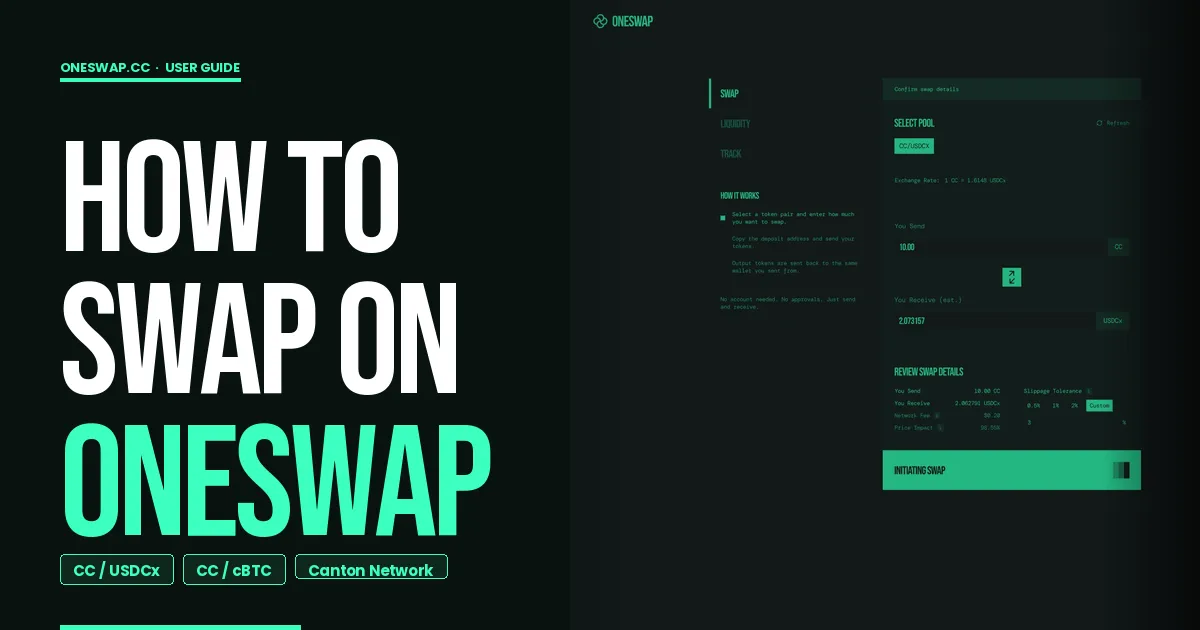
How to Swap on OneSwap Beta: A Step-by-Step Guide
OneSwap beta testing is now live, giving early users a chance to experience seamless swaps on Canton. If you’ve just received access and want a simple walkthrough, this guide will show you exactly how to complete your first swap using Loop Wallet.
Step 1: Unlock the App
Start by visiting OneSwap.cc.
If you’ve been given an access code, paste it into the access code field and click Unlock App.
Once the app unlocks, click Launch, then select Launch App to enter the trading interface.
Step 2: Connect Your Wallet
Next, connect your wallet: console wallet, 5N loop, Nightly or Bron wallets…
For this example, we’ll use Loop Wallet.
If Loop Wallet is already installed in your browser, it may automatically prompt you with “Continue in Browser.” Click it and approve the connection.
You’ll then be asked to sign a message inside your wallet. Once signed, return to the OneSwap platform.
Step 3: Choose Your Swap Pair
Now click Swap.
Select the pool you want to trade in — for example, CC / USDCX.
Enter the amount of tokens you’d like to swap and initiate the transaction.
At this point, OneSwap will generate a Pool Swap Party ID.
This Party ID is important because it acts as the destination where you’ll send your input tokens.
Copy it carefully before moving to the next step.
Step 4: Send Tokens from Loop Wallet
Go back to Loop Wallet.
Click on Canton or any token you intend to send.
Select Send, then paste the Party ID into the recipient field.
Click Next, enter the exact amount you want to swap, then continue and confirm the transfer.
Once the wallet shows Transfer Successful, head back to the OneSwap platform.
Step 5: Wait for Deposit Confirmation
By the time you return, OneSwap should already detect your deposit.
Your output token, in this case USDCX will be prepared for delivery to the same connected wallet.
Once the platform shows Swap Completed, the final step is to claim the token.
Step 6: Accept the Incoming Offer
Open Loop Wallet again and click Offers.
You’ll see a new incoming offer from OneSwap.
Click Accept, continue, and confirm.
Once accepted, the transfer completes successfully and your swapped token will now appear in your wallet.
Congratulations, you just completed your first Swap!